Sunday, 26 July 2020

Email manager setup.exe 64bit

How to make setup.exe 64bit

https://www.youtube.com/watch?v=2jdH85teO5Q

Download HxD hex editor
https://download.cnet.com/HxD-Hex-Editor/3000-2352_4-10891068.html

How to create setup.exe in VS 2017


Errors
Unable to find manifest signing certificate in the certificate store
>> Just untick the signing,
https://stackoverflow.com/questions/11957295/unable-to-find-manifest-signing-certificate-in-the-certificate-store-even-wh

https://stackoverflow.com/questions/4517440/why-am-i-getting-unable-to-find-manifest-signing-certificate-in-the-certificate/8117025


Outlook.mailitem is not found
Reference >> Assesmlies >>
Microsoft.office.interop.outlook 15.0

Typ 'PDDocument' is not defined
Below 3 files deleted & re-referenced:

  • PDFBox-0.7.3
  • IKVM.GNU.Classpath
  • IKVM.Runtime


Ignored


Above needs fix.

App.config had the following.
      <add name="AccessConnectionString" connectionString="Provider=Microsoft.Jet.OLEDB.4.0;Data Source=M:\db2000.mdb;User Id=admin;Password=;" />

Current Jet.OLEDB does not work in 64bit:
https://social.msdn.microsoft.com/Forums/vstudio/en-US/cfb9efe8-4de2-40b6-b817-553c91b9f9c6/the-microsoftjetoledb40-provider-is-not-registered-on-the-local-machine?forum=csharpgeneral

1. You need to use ACE.OLEDB in App.config
    <add name="AccessConnectionString" connectionString="Provider=Microsoft.ACE.OLEDB.12.0;Data Source=M:\db2000.mdb;Persist Security Info=False;" />

2. You need to install Access database engine 64bit.


Access connection string
https://www.connectionstrings.com/access/


If you try to install different version (64bit) of Access Database Engine on top of MS office 365 (32bit):


System.TypeLoadException: 'Could not load type 'ADODB.FieldsToInternalFieldsMarshaler' from assembly

https://stackoverflow.com/questions/5666265/adodbcould-not-load-type-adodb-fieldstointernalfieldsmarshaler-from-assembly


The INSERT INTO statement contains the following unknown field name: 'Comments'
 INSERT INTO tblItemsHistory (WorkOrderID, OrderVersion, ItemCode,Description,Quantity,Location,SOC, QuantityInt, Comments, CancelledItem)  VALUES ('103225189/70',  '1',  'KIT03',  'KITCHEN REPL ( 3 BED)',  '1.000 EA',  'Kitchen',  'KIT03', 1,  'Kitchen Replacement 600mm Benchtop 3 Bedroom tenant happy for pantry to go in lounge room
',False)


  • tblItem
  • tblItemHistory 

required fields:

  • Comments
  • CancelledItem


TEST

- Test if current Email Manager (32bit) works in my machine (64bit) office (32bit)
>> works

- Test if new Email Manager (64bit) works in my machine (64bit) office (64bit)
>> works


To chase up with Sonya

- Can you show me email server? (it's hard to read email from Outlook because version changes every time, and settings change. If I can read email directly from email server, it will be better)



Friday, 24 July 2020

How to generate SSL Certificate


  1. go to winhost
  2. SSL Manager
  3. Click green button, 'Generate a new CSR'. This will generate CSR (Certificate s? Request)
  4. Copy CSR

  1. Go to namecheap.com
  2. Product List
  3. Click 'Issue new CSR button'
  4. Paste CSR
  5. Generate
  6. DCV(Domain Control Validation) email is sent to podmaster@dolsoft.com.au

  1. Go to winhost >> Email
  2. Click link in the email
  3. Paste the password given in the email
  4. They will send you another email with attached SSL Certificate.zip
  5. Send the zip file to winhost to install.

How can I check if installed properly?
Winhost >> SSL Cert button on top
Namecheap >> Domain list >> Postive SSL Certificate >> it shows 'Active' (not under progress)

Thursday, 23 July 2020

Email Manager 20101110 V6


How to install Email Manager. 
Updated 2020-07-23

1. Download the latest zip file

2. Run setup.exe

3. Create folder C:\EmailManager and copy some setting files in there.

4. Make sure M drive is connected to have db2000.mdb.


Refer below when errors:

- Logged in the new computer and confirmed Access 2019 version
Microsoft 365 MSO (16.0.13) 64-bit

- Fixed Access 64 bit issue

- Changed Non-Unicode system locale to ‘Korean’ to fix Access ActiveX etc error. 

- Changed Y drive to M drive to make EmailManager work

- Installed EmailManager on PC (shortcut is pinned in Start button).

- Created C:\EmailManager folder to make EmailManager work

- Changed PC Date/Time to AU to avoid EmailManager error.
Region >> Formats >> English (Australia)
Region >> Location >> Australia

- I ran Email Manager and confirmed working, but with no work order emails to process.


Monday, 1 June 2020

Lumen sorting

You cannot sort workorders by function definition, eg, priority


Sunday, 31 May 2020

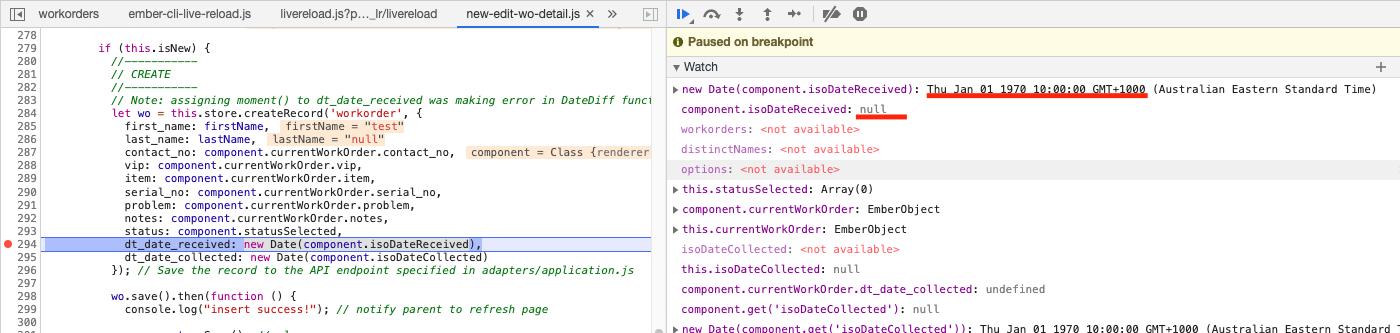
TimeStamp interesting

I had trouble in saving date into database and read it again.

received date: DateTime
collected date: TimeZone


In summary

  • I created all columns as TimeZone.
  • When read in js side, just do substring(0,10) to remove 10:00 hour time..
  • Show in chrome date type.
  • When saving, rely on whatever API does, and let it save with 10:00 hour time.


MySQL check current time zone (https://stackoverflow.com/questions/2934258/how-do-i-get-the-current-time-zone-of-mysql) shows below. And it seems my MYSQL follows my local machine time stamp - AEST.


So far so good.
The problem happens when reading the date value again in to javascript.


When reading the database value '2020-06-01 10:00 AEST' into API and into js, in some how, it becomes '2020-06-01 00:00 AEST'.

This leads js display incorrect giving 31/5 not 1/6.


The resolutions is, whatever date you have in javascript, you ignore the timezone, and just convert the value (2020-06-01 00:00 AEST) into string.


Javascript fun fact

Datetime is funny in java script. new Date(null) is 1970-1-1.


Friday, 29 May 2020

Lumen - insert datetime

At one stage, I couldn't insert a record into table with datetime format.
I know MySQL supports DateTime and TimeStamp for date formats. I tried both of them, error still was same.


Error message was below.

Invalid datetime format: 1292 Incorrect datetime value: '2020-05-29T12:09:52.000Z' for column 'dt_date_received'.

I knew that it was API error. js gave current time as 'new Date()'. And API received it as string. And it had timezone information from the js date (you cannot remove this timezone information because js date is just integer value basically in some way).

Imagine you run SQL command below. You will get exactly the same error as above.


I couldn't figure out, so I tried API Test, which I made for simple CRUD test. It didn't work here either. In below, the first two 'ggg' was inserted into store, but not database. So it didn't show id.


Then I googled how to edit $request data in Laravel. And I found below link!
https://stackoverflow.com/questions/36812476/how-to-change-value-of-a-request-parameter-in-laravel


You can edit the $request data before inserting into database.


The data was inserted as expected!
Further, I replaced the given dt_date_received with replacing 'T' and 'Z'.


It was working.

Actually all this errors happened because I had to include 'dt_date_received' into 'fillable' to update/create record with that column information.


You need this to create record with some timestamp value.


Imagine you omit the line 25 in the above picture. Then it becomes you try below SQL query.


And in this case, because 'dt_date_received' is 'not null' column, you will have another error.
'dt_date'_received' cannot be null.


In Summary,

  1. If insert is not working, go for API Test for simple testing
  2. Read error message
  3. Try API code change to resolve the issue.


Sunday, 10 May 2020

EmberTable Debugging

At one stage, ember table showed nothing. Page frozen.

Columns was defined.
this.columns = [
  {
    name: `ID`,    valuePath: `id`  },  {
    name: `Name`,    valuePath: `full_name`  },  {
    name: `VIP`,    valuePath: `vip`  },  {
    name: `Problem`,    valuePath: `problem`  },  {
    name: `Received Date`,    valuePath: `dt_date_received`  },  {
    name: `Quoted Date`,    valuePath: `dt_date_quoted`  },  {
    name: `Prom. Completion Date`,    valuePath: `dt_date_completion`  },  {
    name: `Status`,    valuePath: `status`  },  // {  //   name: `Status Icons`,  //   valuePath: `status_icons`,  //   cellComponent: `custom-cell`,  //   color: `orange`  // },  {
    name: `Priority`,    valuePath: `priority`  }
];

ROws was defined
  get rowsForSortingNFiltering() {


    console.log('model.length', this.model[1].length);
    var rowsFiltered = this.model[1];    return rowsFiltered;
  }

Model was returned as below.
model() {
  let columns = this.dataGenerator.columns;  let filter = this.dataGenerator.workorderFilter;
  /* Whenever looping forever, 1. comment below >> 2. open inspect >> 3.uncomment */  return this.store.findAll('workorder').then(function(workOrders){
    debugger;
    // show some values    if (workOrders.length > 0) {
      console.log("1st workorder:" , workOrders.objectAt(0).id, workOrders.objectAt(0).first_name);    }
    let model = [columns, workOrders, filter];    return model;  });

}

Whenever page was frozen, I had to comment above model. Refresh page. Open Inspector. Uncomment to check the data again.


I tried to removing the hbs table part. >> working, page not frozen
{{!-- workorder list --}}  <div class='demo-container'>      <EmberTable as |t|>          <t.head @columns={{columnsForSorting}}
                  @sorts={{sorts}}
                  @onUpdateSorts={{action (mut sorts)}}
                  @widthConstraint='gte-container'                  @fillMode='first-column'                  as |h|>
              <h.row as |r|>                  <r.cell as |columnValue columnMeta|>                    {{#if showSortIndicator}}
                        <EmberTh::SortIndicator @columnMeta={{columnMeta}} />                    {{/if}}
                    {{columnValue.name}}
                    {{#if showResizeHandle}}
                        <EmberTh::ResizeHandle @columnMeta={{columnMeta}} />                    {{/if}}
                  </r.cell>              </h.row>          </t.head>
          <t.body @rows={{rowsForSortingNFiltering}} as |b|>              <b.row as |r|>                  <r.cell as |cell column|>                    {{#if column.cellComponent}}
                      {{#component column.cellComponent color=column.color statusIcons=cell}}
                      {{!-- {{cell}} --}}                      {{/component}}
                    {{else if (eq column.name "ID")}}
                        <a href="#" class="nav-button">{{cell}}</a>                    {{else}}
                      {{cell}}
                    {{/if}}
                  </r.cell>              </b.row>          </t.body>
      </EmberTable>  </div>

And tried to put each data without EmberTable >> working.
{{#each rowsForSortingNFiltering as |row| }}
  <div>{{row.id}} {{row.full_name}}  {{row.vip}}  {{row.problem}} {{row.dt_date_received}} {{row.dt_date_quoted}} {{row.dt_date_completion}} {{row.status}} {{row.priority}}</div>{{/each}}


Tried put simplest EmberTable >> not working. frozen again.
<EmberTable as |t|>    <t.head @columns={{columnsForSorting}} />    <t.body @rows={{rowsForSortingNFiltering}} /></EmberTable>


Now tried to return rows matching column data only. No extra attribute is defined. New Rows was defined.

  get rowsForSortingNFiltering() {


    console.log('model.length', this.model[1].length);
    var rows = this.model[1];

    var rowsFiltered = [];    rows.forEach(function (elemRaw) {
      var elem = { id: elemRaw.id, full_name: elemRaw.full_name};      rowsFiltered.push(elem);    })


    return rowsFiltered;
  } 

And it finally worked! EmberTable requires exactly same valuePath of columns and rows. Columns can be more valuePath than rows. The missing valuePath will show empty. But rows cannot have more attribute than columns. EmberTable stops working!